Scheduling a Trip
Create a new trip
- Go to Trips & Dispatch in the sidebar.
- Click the + New Trip button.
- The trip wizard opens. Fill in the details step by step.
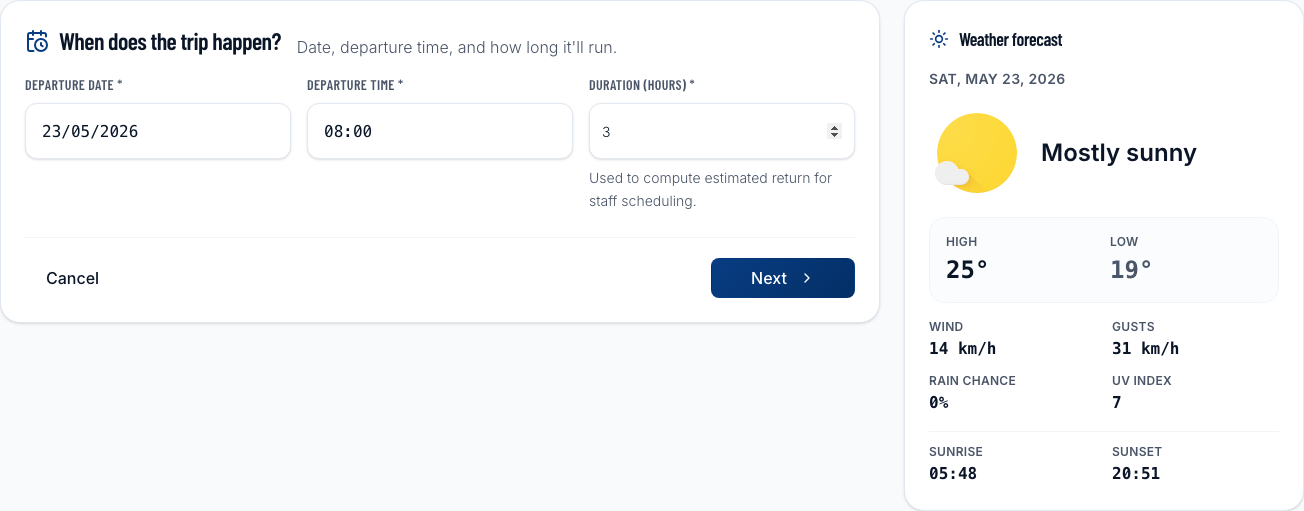
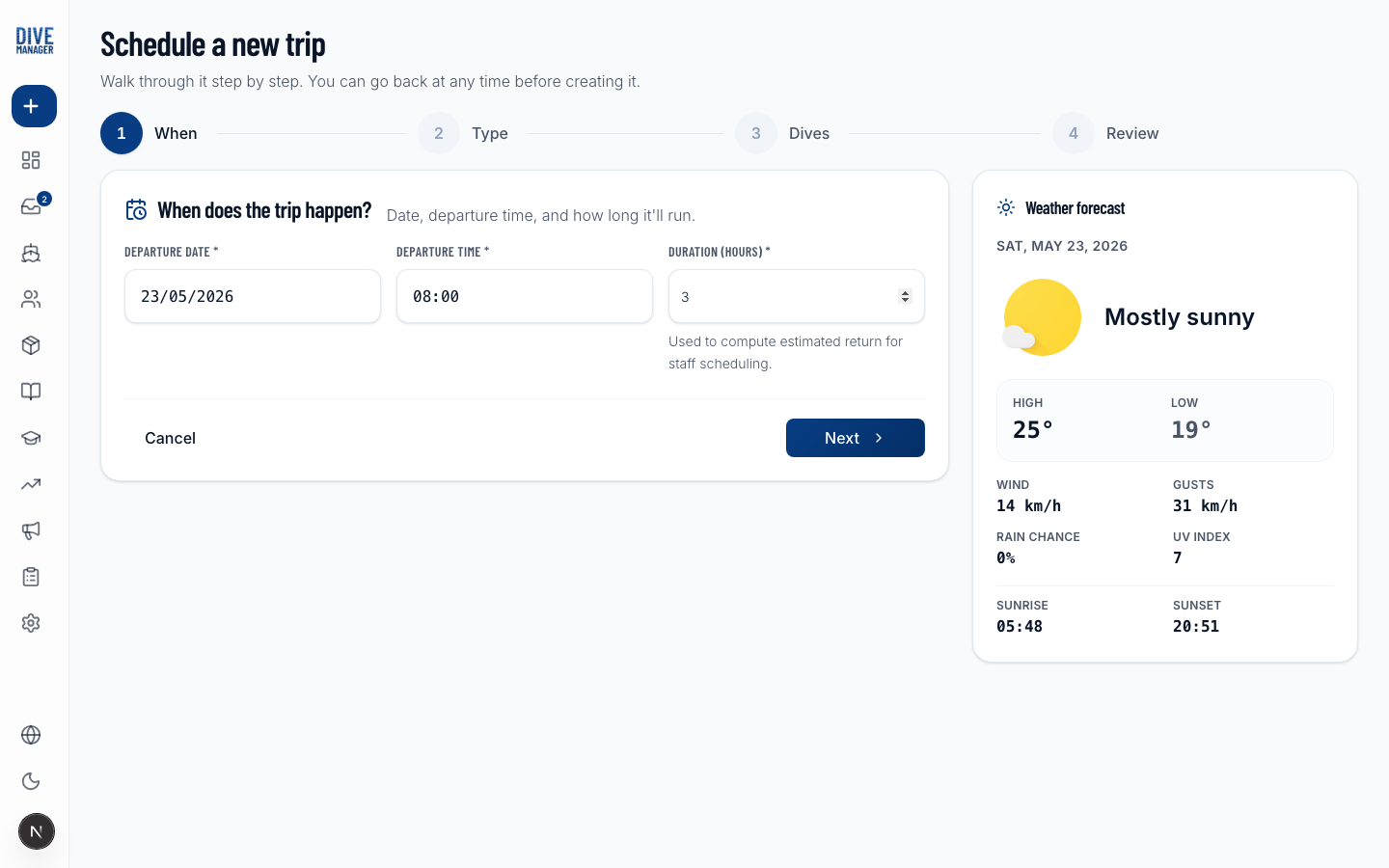
Trip wizard fields
Basic info
| Field | Description |
|---|---|
| Title | A short name for the trip (e.g., "Morning Reef Dive") |
| Trip type | Boat, shore, snorkel, training |
| Date | The date of the trip |
| Departure time | When divers need to be on board / at the site |
| Return time | Expected return time |
Vessel & capacity
| Field | Description |
|---|---|
| Vessel | Select one of your boats (required for boat dives) |
| Max divers | The maximum number of guests; defaults to the vessel's capacity |
| Min divers | Minimum needed for the trip to run (used for tentative trips) |
Dive site
You can attach one or more planned dive sites to a trip. Dive sites are managed separately under Dispatch → Sites.
Notes
Internal notes that are visible to your team but not shown to customers on the public booking page.
After creating the trip
The trip appears on the dispatch calendar immediately. If you enabled online bookings, it also becomes available on your public booking page (unless it's set to tentative).
From the trip detail page you can:
- See and manage all bookings for the trip
- Check in divers as they arrive
- Mark the trip as complete after it runs
- Print or export the diver manifest
tip
You can duplicate an existing trip to quickly create recurring dives. Open a trip and click Duplicate — the new trip inherits all settings except the date/time, which you set fresh.