Vessels
Vessels represent your dive boats. They are used in the dispatch system to track which boat is used for each trip and to detect scheduling conflicts.
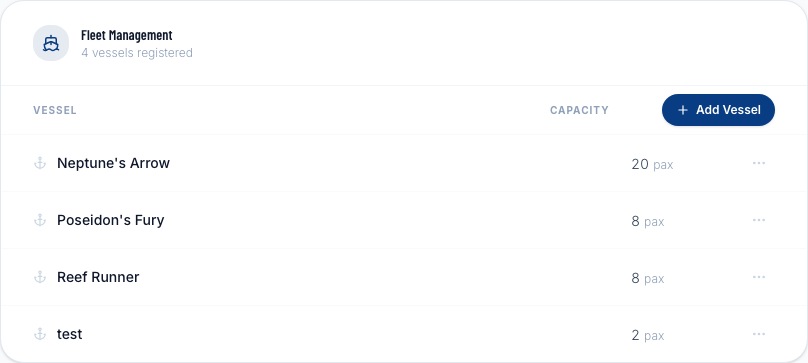
Adding a vessel
- Go to Settings → Vessels.
- Click + Add Vessel.
- Fill in:
- Name — e.g., "Sea Dragon", "La Sirena"
- Capacity — maximum number of people the vessel can safely carry
- Notes — optional; visible to staff only (e.g., "suitable for beginners", "no hard luggage")
- Click Save.
Editing a vessel
Click the Edit (pencil) icon next to a vessel to change its name, capacity, or notes. Changes apply immediately to future trips but do not affect already-scheduled trips.
Deleting a vessel
A vessel can only be deleted if it has no future trips assigned to it. If it does, you'll need to reassign those trips first or cancel them before deleting the vessel.
Vessel capacity and trip capacity
When you schedule a new trip and select a vessel, the trip capacity defaults to the vessel's capacity. You can adjust it downward (e.g., to keep a few spots for walk-ins) but not above the vessel's maximum.
Vessel conflict detection
If you try to schedule two trips on the same vessel at overlapping times, DiveManager will warn you. You can proceed with the scheduling if you know the situation requires it (e.g., the conflicting trip is going to be cancelled). See Capacity & Conflicts for full details.