Staff & Roles
Manage who has access to your DiveManager account and what they can do.
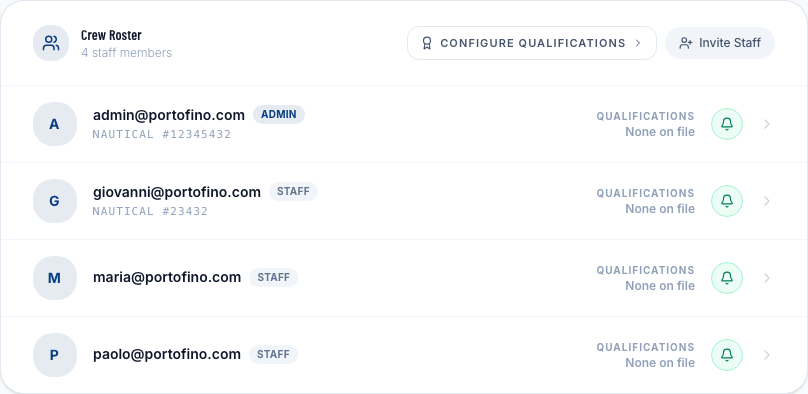
Inviting a team member
- Go to Settings → Staff.
- Click + Invite Staff.
- Enter their email address and select a role.
- Click Send Invite.
The invited person receives an email with a link to set their password and log in. Until they accept, they appear as Pending in the staff list.
Roles
| Role | What they can do |
|---|---|
| Owner | Everything, including billing, subscription, and deleting the account |
| Admin | Full access to all features except billing |
| Staff | Create and manage bookings, divers, and trips |
| Instructor | Read-only access to the dispatch schedule and trip manifests |
Changing a role
Click the Edit icon next to a staff member to change their role. Role changes take effect at their next login.
Removing access
Click Remove next to a staff member to revoke their access. This does not delete their account — they simply lose access to your dive center. If they are a member of multiple dive centers on DiveManager, their other access is unaffected.
The dive center owner
The Owner role is tied to the account that originally set up the dive center. There can be only one Owner. To transfer ownership, contact support.
Be careful when granting the Admin role — admins can add, remove, or modify other staff members.
Two-factor authentication (2FA)
Staff members can enable 2FA from their personal account settings. You cannot enforce 2FA centrally, but you can see which team members have it enabled from the staff list.