Medical Form & Waiver
DiveManager includes an integrated system for collecting the health questionnaire (medical anamnesis) and liability waiver from every diver, with digital signature. No printing needed — the diver fills in and signs directly from their phone.
Configuration in Settings
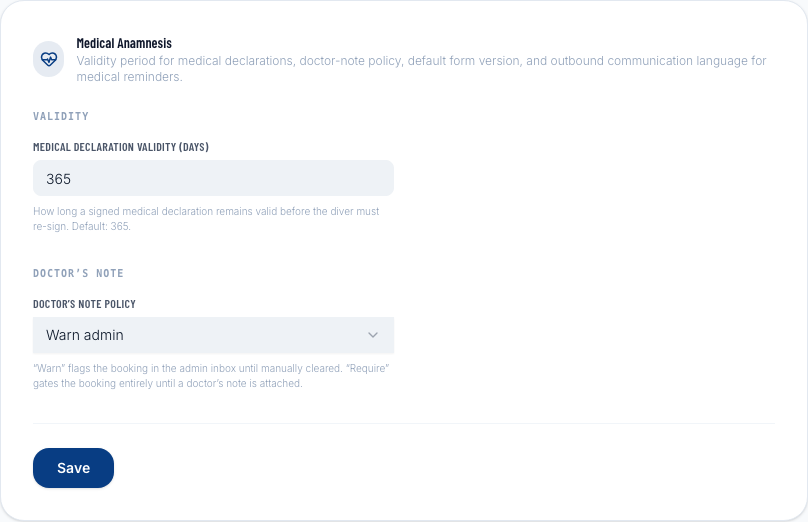
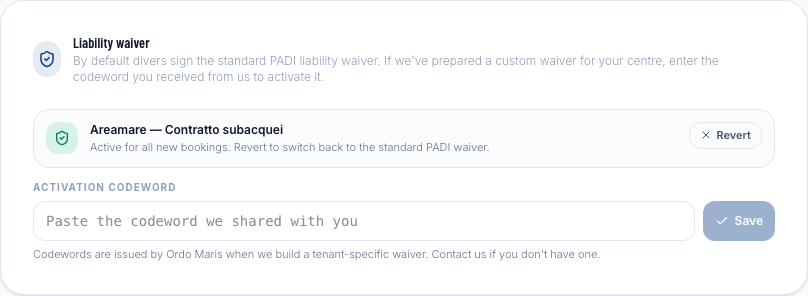
Go to Settings and scroll to the Medical documents section to:
- Enable the medical form
- Set the validity period — how many months before the form must be re-done (e.g., every 12 months)
- Configure the waiver text and required fields
How to send the link to a diver
The diver receives a personal link (magic link) — no account needed. The link can be generated in two places:
- From the diver profile → Medical status card → Send new medical link
- From a booking detail page → Medical block → Send medical link (the document is automatically linked to that booking)
Once generated, copy the link and send it to the diver via email, WhatsApp, or SMS.
The diver's flow
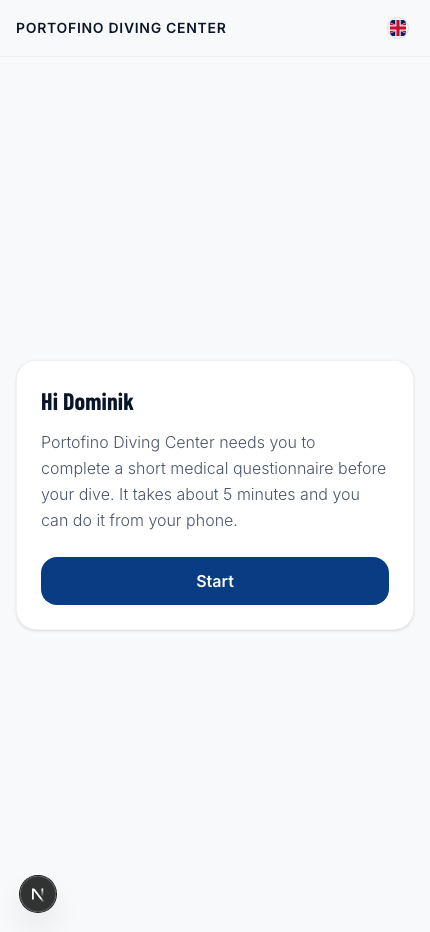
Welcome screen
The diver opens the link and sees a welcome screen with the dive center name and a brief explanation of the form. They can choose their language before starting.
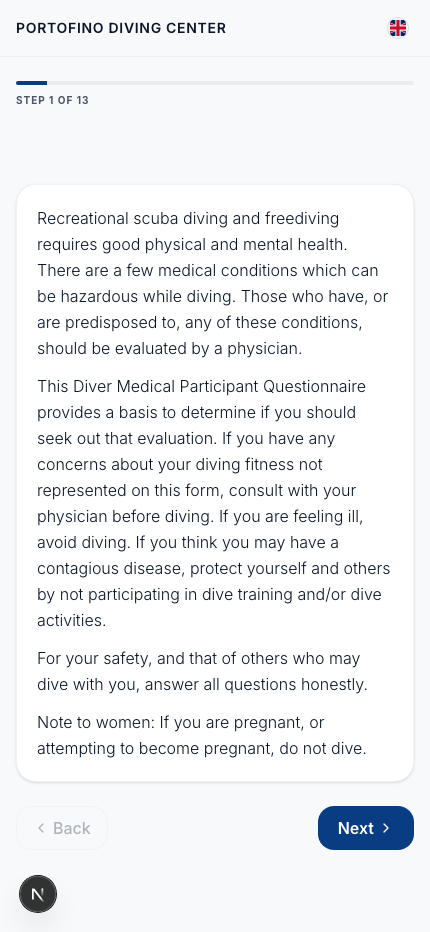
Opening information
After clicking Start, an information screen explains the form — its purpose, how the data is used, and what signing means. The diver reads and continues.
Health questions
The form guides the diver through a series of clinical questions about health conditions relevant to diving — cardiovascular, respiratory, neurological systems, and more. Each question is worded clearly and non-technically.
The diver answers Yes or No for each question. If they answer Yes to certain questions, follow-up questions appear automatically within the corresponding box.
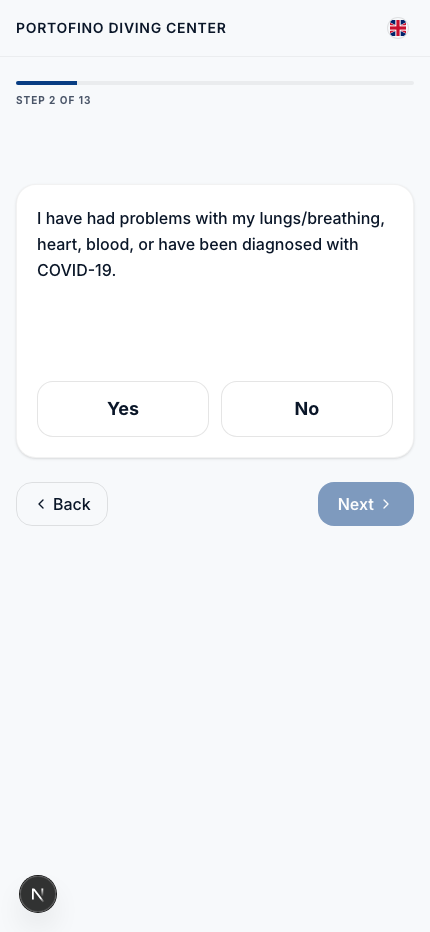
A progress indicator at the top always shows where the diver is in the form.
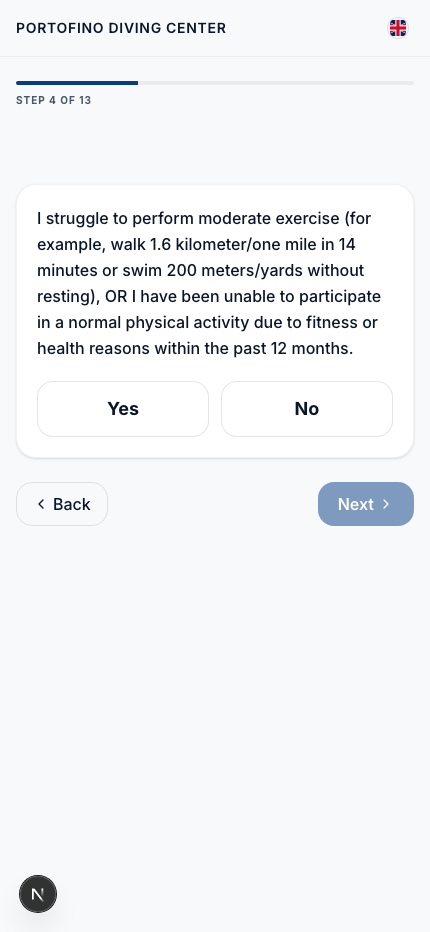
Digital signature
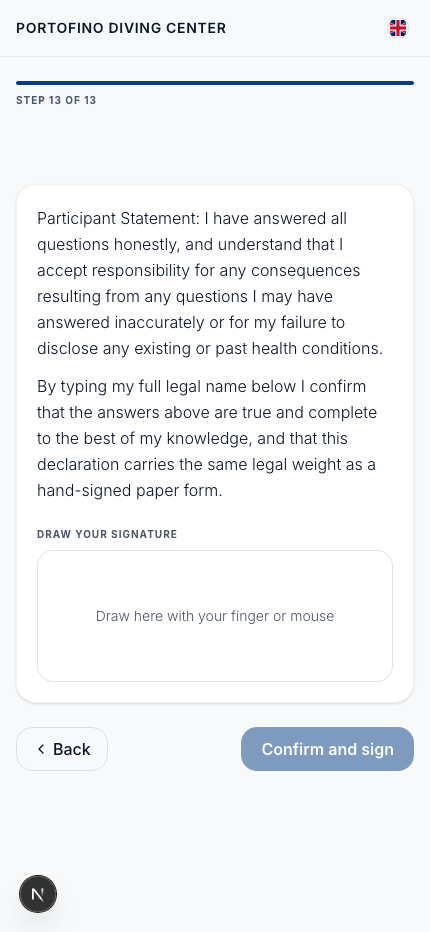
In the final step, the diver:
- Reads the waiver text
- Types their full name in the name field
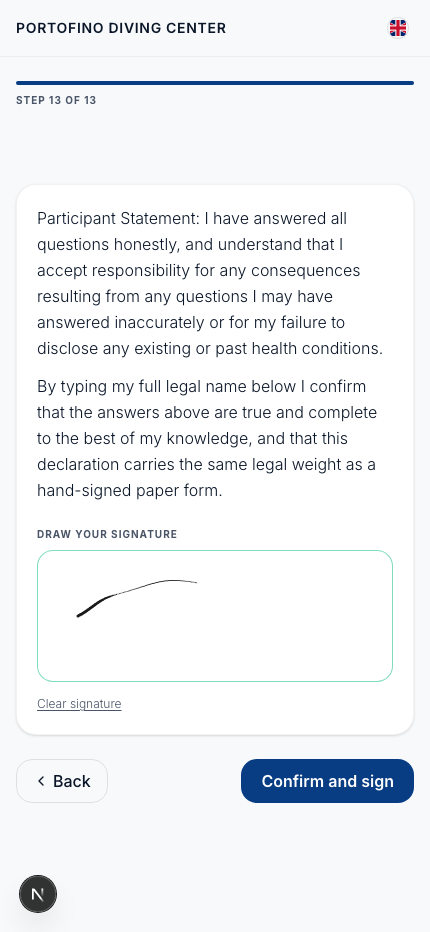
- Signs with their finger (or mouse) in the signature pad
- Clicks Confirm & sign
After signing
- The signed document (with a snapshot of the exact questions at the time of signing) is saved to the diver's profile
- Staff can view the answers and download the signed PDF
- The system records the signing date and automatically calculates the expiry
- If the diver declared relevant conditions, a yellow warning appears on the profile and in the booking
Medical status on the profile
| Status | Meaning |
|---|---|
| Valid | Form signed and not yet expired |
| Expired | Signed but past the configured validity period — must be re-done |
| Missing | No form on file |
:::tip Link the form to a booking When generating the link from a booking detail page, the document is automatically associated with that trip. This lets you track which divers have completed the form for a specific date. :::