Email Templates
Templates are the building blocks of your campaigns. Create one template and use it many times.
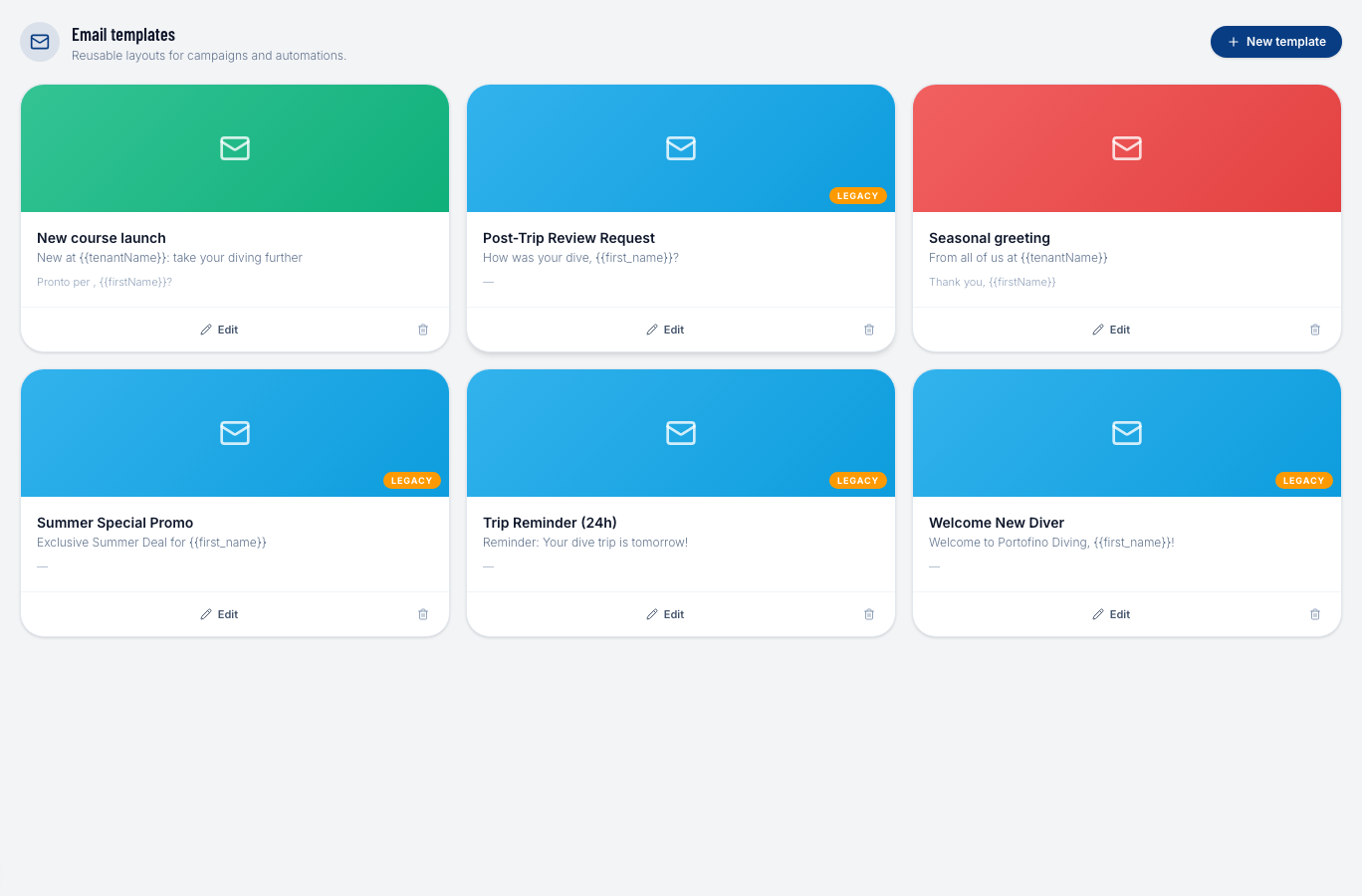
Creating a template
- Go to Marketing → Templates and click + New Template.
- Enter:
- Name — internal name only, not visible to customers
- Subject line — the email subject your divers will see
- Preheader — short preview text shown by email apps before opening (optional but recommended)
- Trigger event — set to Manual for campaigns you send yourself
- Use the block editor to design the email body.
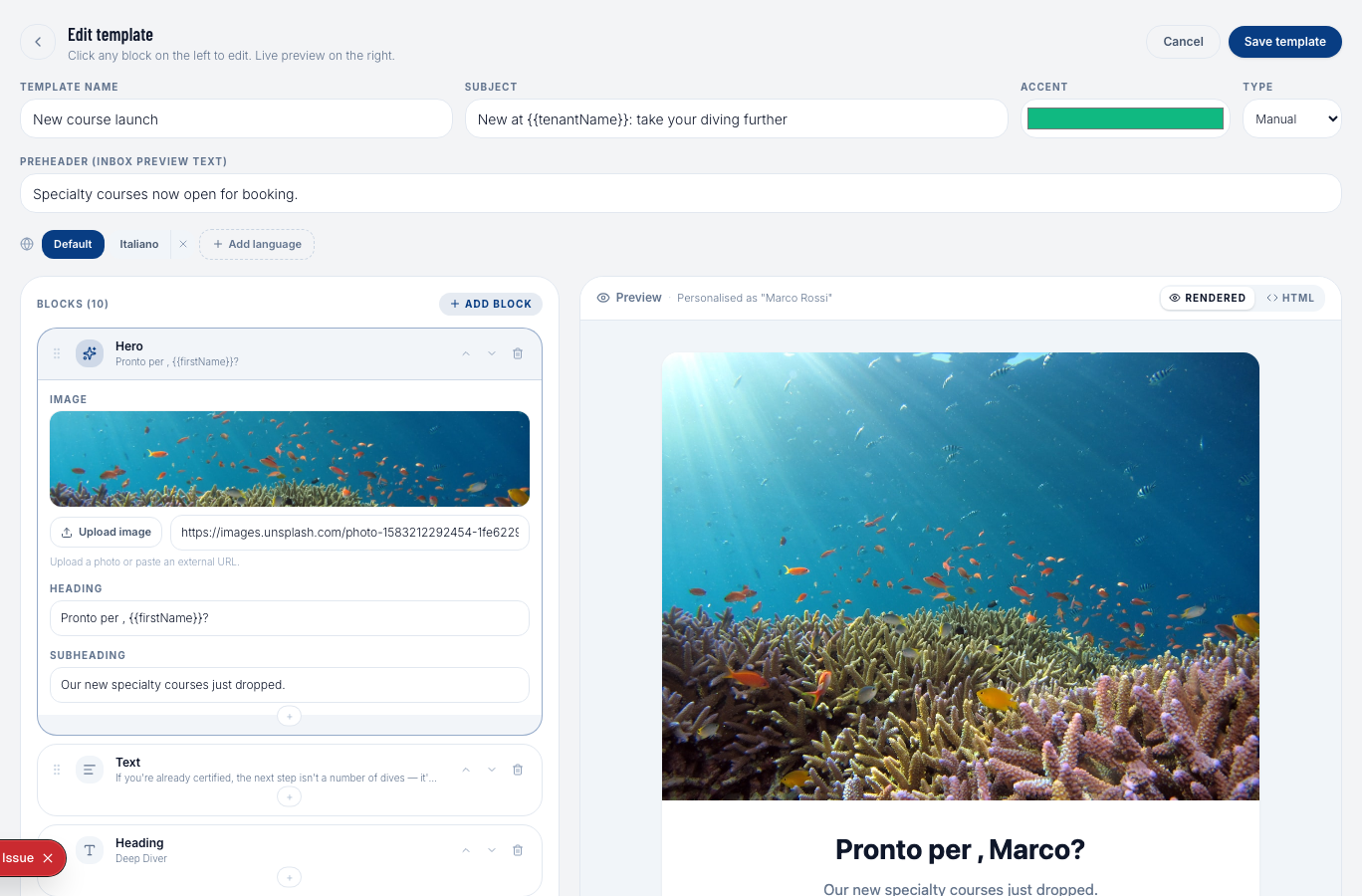
Block editor
The block editor uses a drag-and-drop interface. Available block types:
| Block | Description |
|---|---|
| Text | Rich text paragraph with formatting |
| Image | Inline image with optional link |
| Button | Call-to-action button with custom label and URL |
| Divider | Horizontal rule to separate sections |
| Spacer | Empty vertical space |
| Header | Large title block, ideal for the top of the email |
Drag blocks from the panel on the right onto your canvas. Click any block to edit its content.
Personalization variables
You can insert dynamic values into any text block:
| Variable | Replaced with |
|---|---|
{{firstName}} | The diver's first name |
{{lastName}} | The diver's last name |
{{tenantName}} | Your dive center name |
Example: "Hi {{firstName}}, we have some great dives lined up this summer at {{tenantName}}!"
Accent color
Each template has an accent color — a single color used for buttons, links, and decorative elements. This should match your dive center's brand color.
Locale variants
If your diver database includes people who speak different languages, you can create language variants of the same template:
- Open a template and click + Add Variant.
- Select the locale (Italiano, Deutsch, Français).
- Write the translated subject and body.
When you send a campaign, DiveManager automatically sends each diver the version in their preferred language (based on the locale stored on their profile). If no variant exists for their language, the default (English) is sent.
Previewing a template
Click the Preview tab to see how the email will look in your recipients' inboxes, with placeholder values filled in.
Managing templates
From the template list you can:
- Edit an existing template
- Duplicate a template as a starting point for a new one
- Delete a template (only possible if no active campaign uses it)