Campaigns
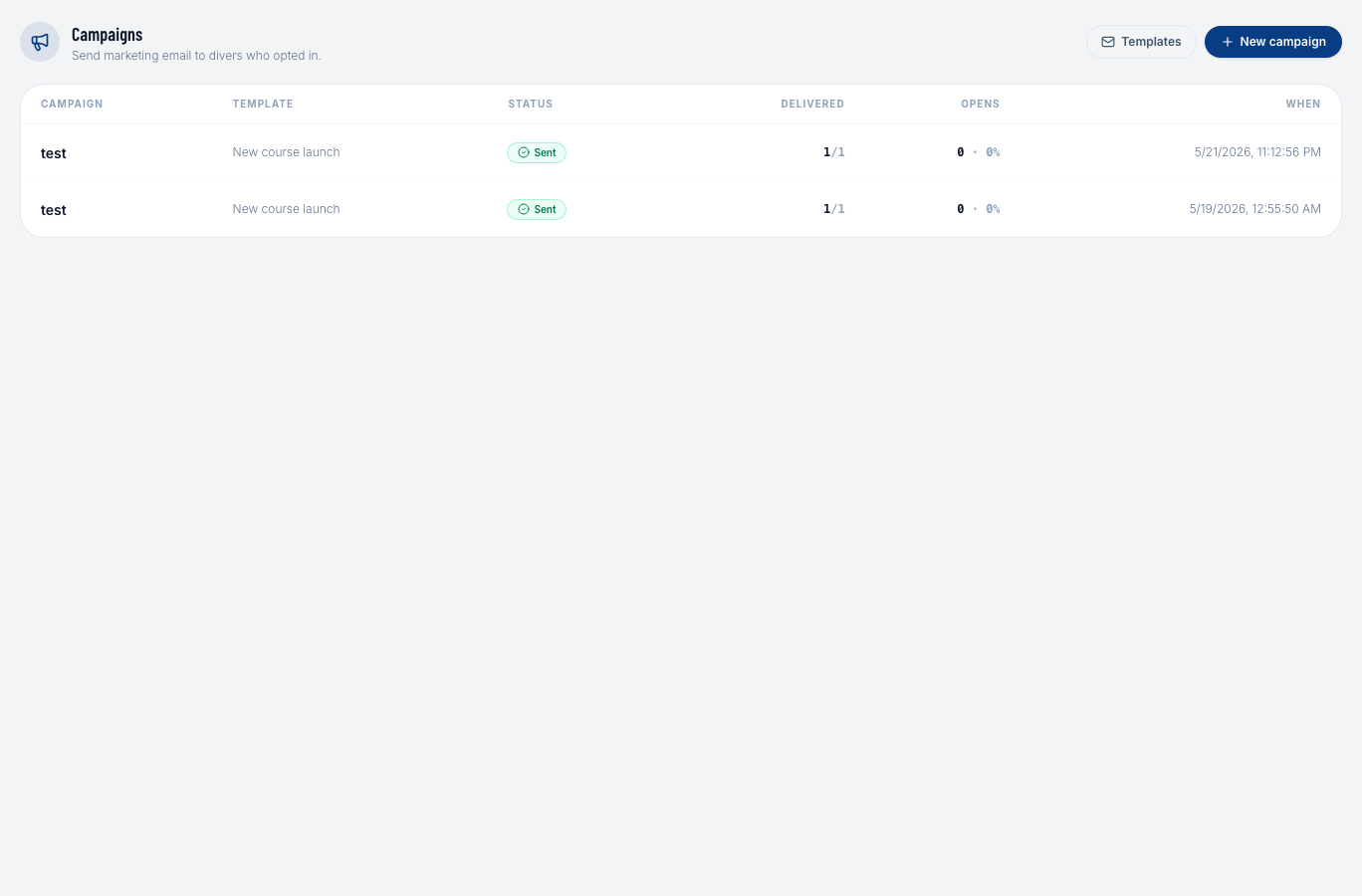
A campaign sends a template to a selected audience. Once sent, DiveManager tracks opens and unsubscribes in real time.
Creating a campaign
- Go to Marketing → Campaigns and click + New Campaign.
- The campaign wizard walks you through three steps:
Step 1 — Template & Subject
- Choose an existing template.
- Optionally override the subject line for this specific send without modifying the template.
- Optionally override the preheader.
Step 2 — Audience
Define who receives the campaign:
| Filter | How it works |
|---|---|
| Certification level | Only divers holding specific cert levels |
| Last dive date | Only divers who dived on or after a specific date |
| All mailable contacts | Everyone who has given marketing consent and hasn't unsubscribed |
| Manual override | Include or exclude specific divers regardless of filters |
The audience preview shows an estimated recipient count as you adjust filters.
:::info Consent is always respected Unless you explicitly enable the Override consent toggle (for transactional messages only), DiveManager will only send to divers who have opted in to marketing. :::
Step 3 — Schedule
- Send now — the campaign starts sending immediately after you confirm.
- Schedule for later — choose a future date and time; DiveManager will send automatically.
Sending and delivery
Campaigns are sent through your own SMTP relay (configured in Settings). For large audiences, DiveManager sends in batches to respect rate limits. The campaign page shows a live progress bar during sending.
Campaign analytics
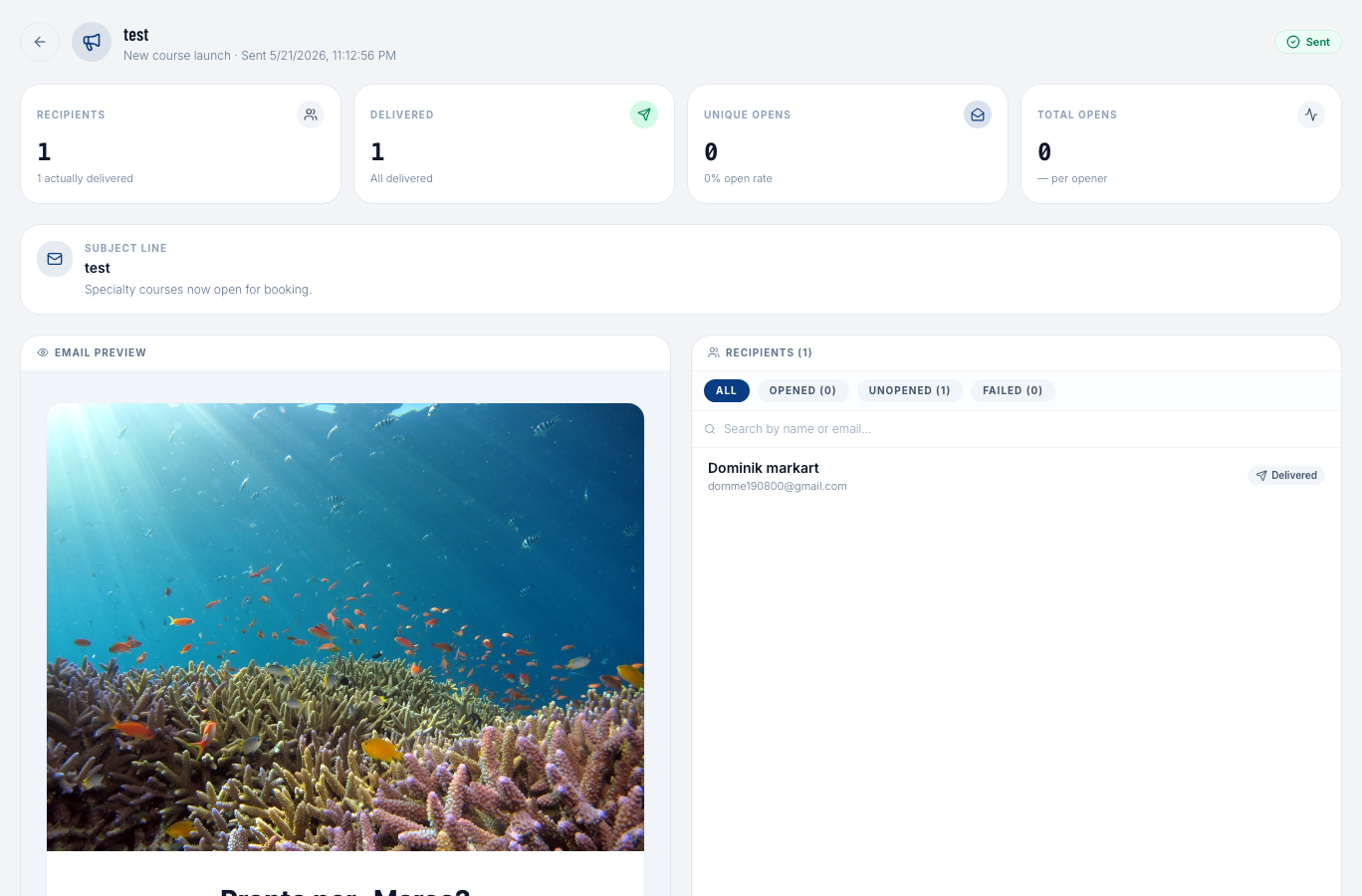
After a campaign has been sent, click on it to open the Campaign Detail page:
Summary stats
| Metric | Description |
|---|---|
| Recipients | Total number of divers the campaign was sent to |
| Sent | Successfully delivered (bounces reduce this count) |
| Unique opens | How many divers opened the email at least once |
| Open rate | Unique opens ÷ sent × 100 |
| Total opens | Total number of times the email was opened (includes re-opens) |
Recipient list
Below the stats you'll see the full recipient list with per-diver statuses. Use the filter pills to narrow down:
| Filter | Shows |
|---|---|
| All | Every recipient |
| Opened | Divers who opened the email |
| Unopened | Divers who haven't opened yet |
| Failed | Delivery failures |
| Unsubscribed | Divers who clicked the unsubscribe link after receiving the campaign |
The Unsubscribed filter appears automatically when at least one recipient has unsubscribed. Unsubscribed divers are marked with a badge on their row — they will not receive future campaigns.
Retrying failed deliveries
If some emails failed to deliver (e.g., SMTP timeout), a Retry failed button appears at the top of the campaign detail page. Clicking it re-queues only the failed recipients — no one who already received it gets a duplicate.
Unsubscribes
Every campaign email includes an unsubscribe link at the bottom. When a diver clicks it, they are immediately removed from future campaign sends. Their unsubscribe date is recorded on their profile.
Divers can re-subscribe at any time through the same unsubscribe page, which shows a "Re-subscribe" option.