Public booking page & wizard
Every dive center on DiveManager has a personalised public page that customers open to see available trips and book. No app download, account, or login required — everything happens in the browser, including on mobile.
The public homepage
The public homepage is at your center's address (e.g. yourshop.divemanager.it). This is the link you share on social media, in your bio, or in emails.
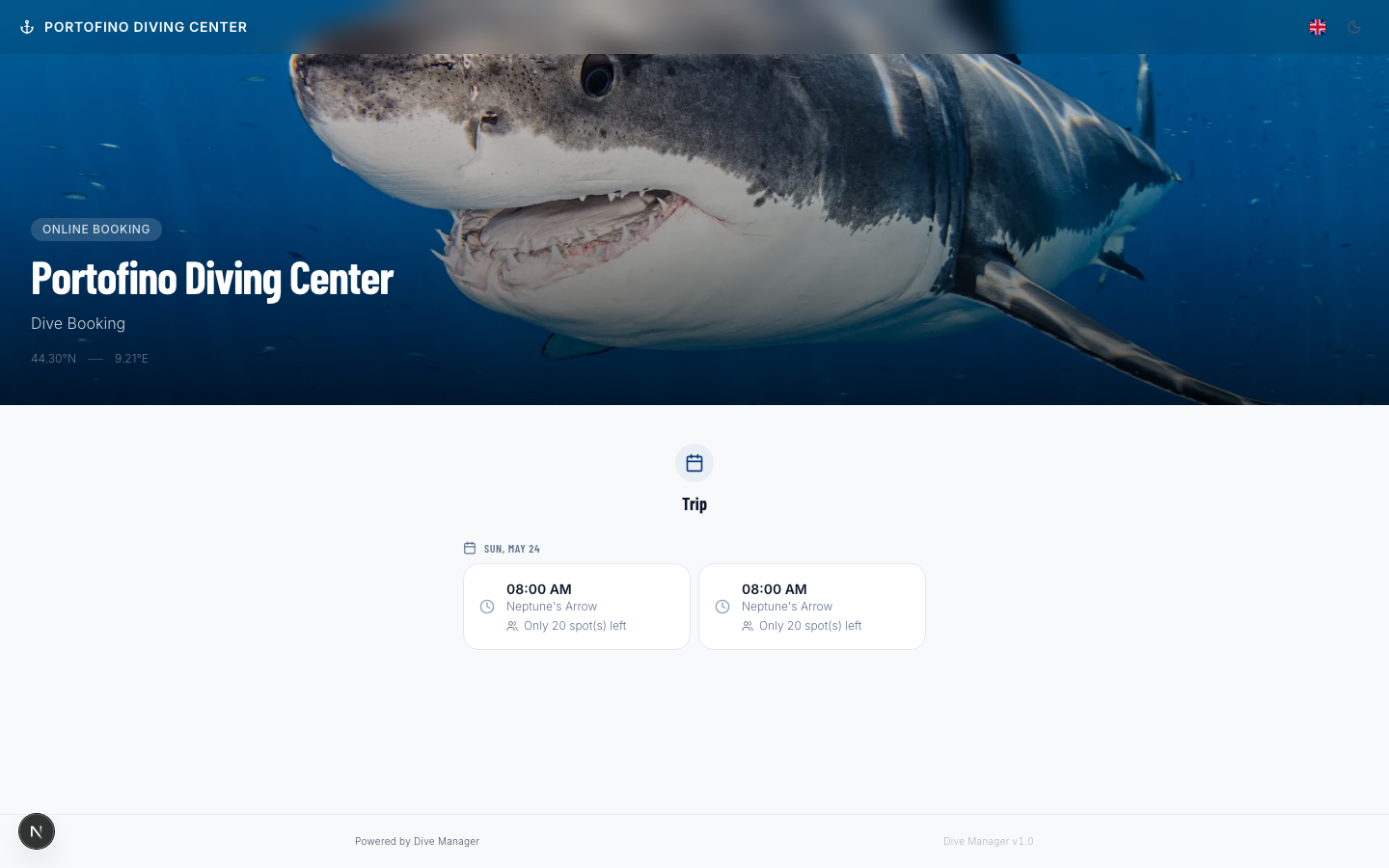
At the top is a hero banner with your center's image, name, and location. Scrolling down shows the list of upcoming bookable trips — in chronological order, with date, trip type, vessel, available spots, and price.
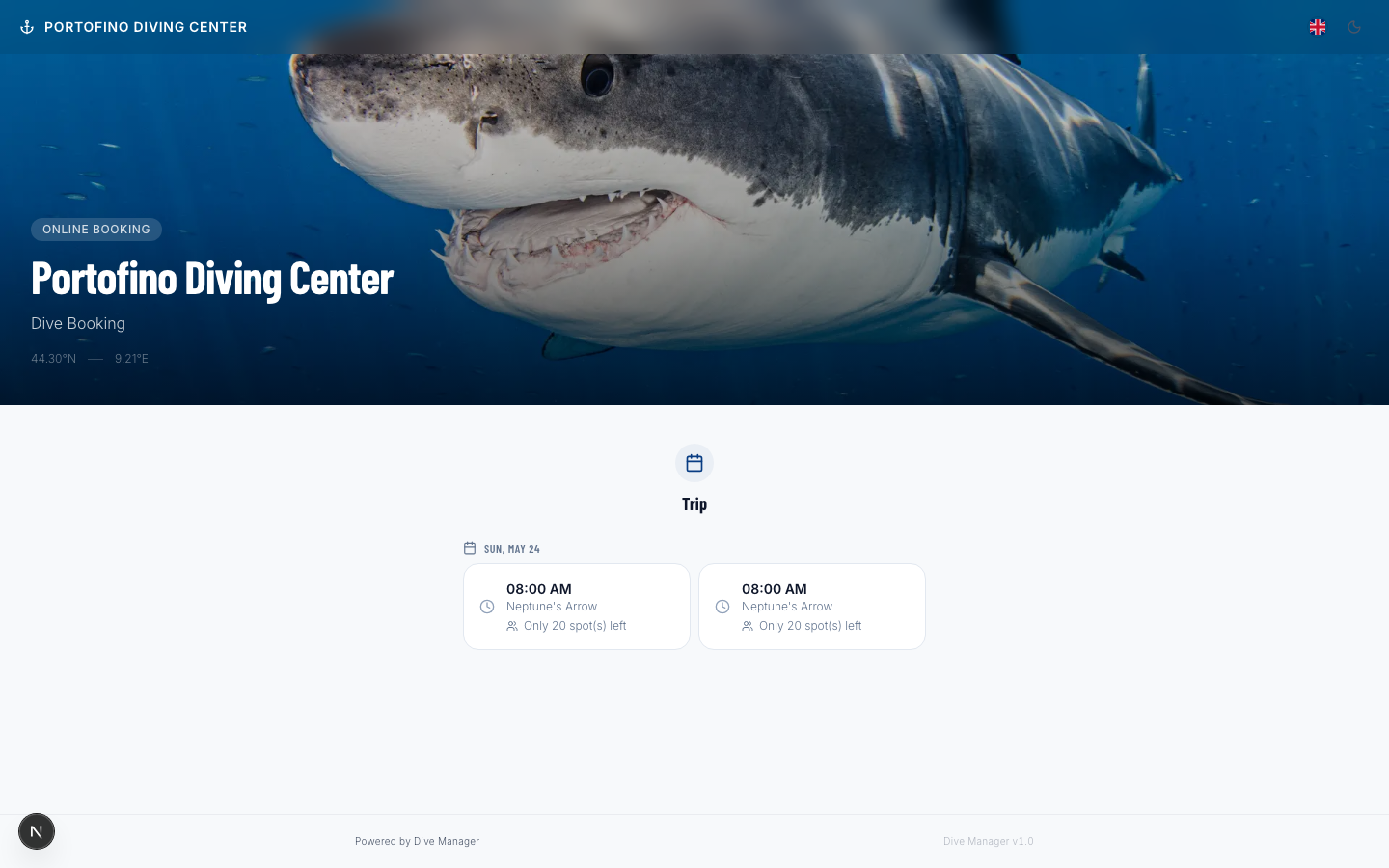
Every trip has a Book button that opens the booking wizard directly. The page is available in four languages (Italiano / English / Deutsch / Français), supports dark mode, and works on any device.
The booking wizard
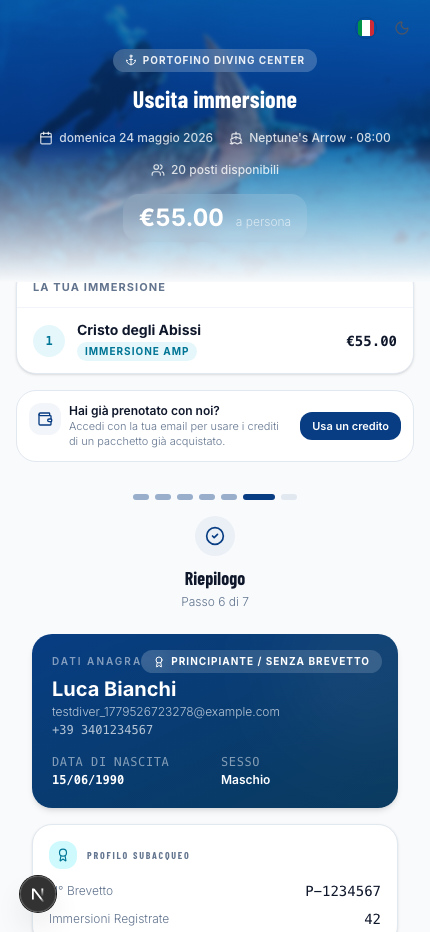
Clicking Book opens the wizard — a guided multi-step form. The trip summary is always visible at the top so the customer never loses track.
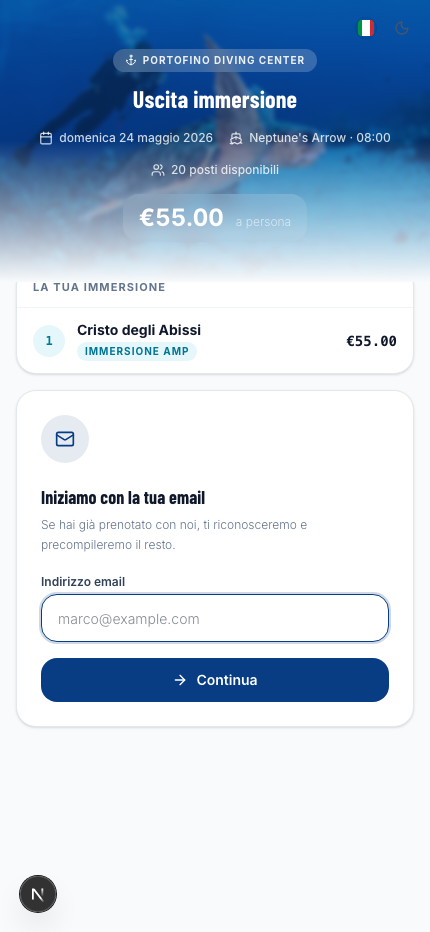
The wizard starts with an email prompt:
- New customer: starts immediately, no registration required
- Returning customer: receives a one-time code that verifies identity and auto-fills all their details
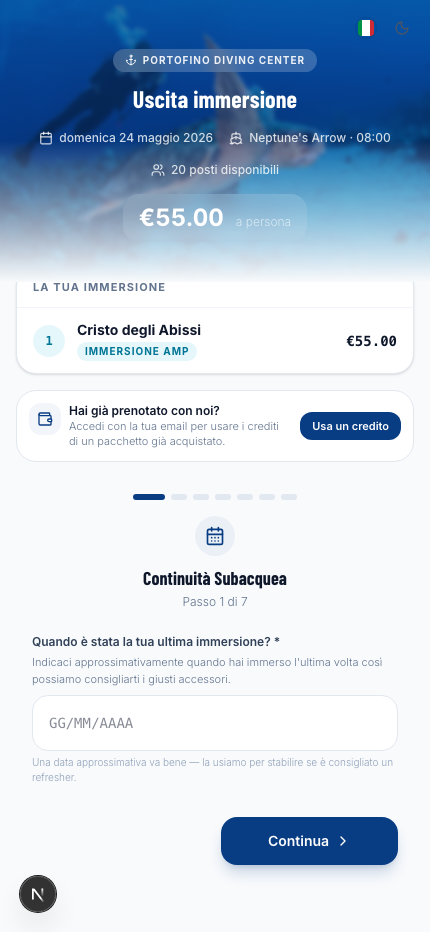
Step 1 — Last dive
Checks how recently the customer last dived. If the center has activated the refresher policy, the system warns (or blocks) the customer depending on configuration.
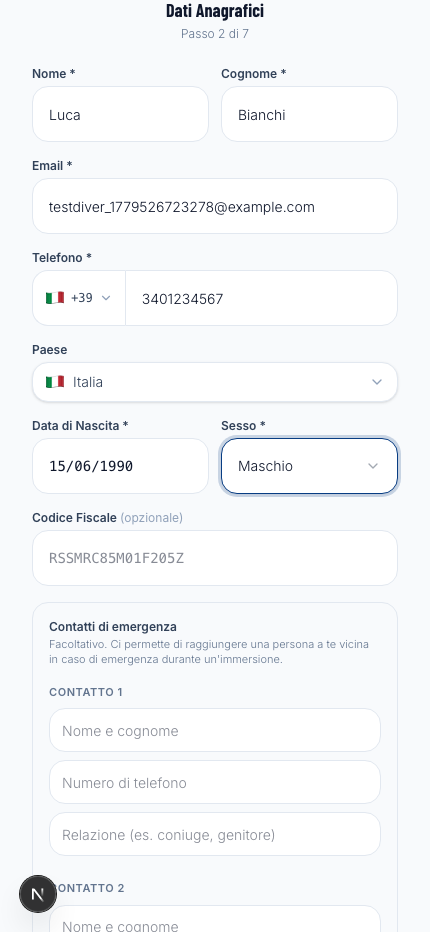
Step 2 — Personal details
First name, last name, email, phone with international dial code, date of birth, and gender.
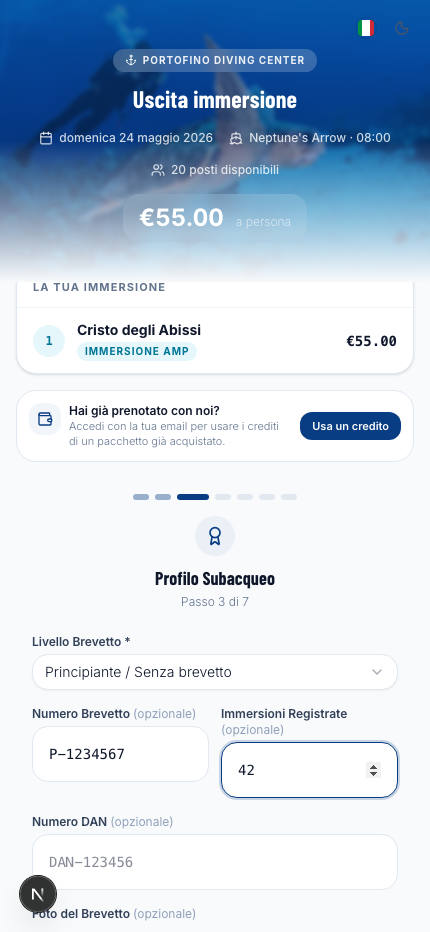
Step 3 — Certification
Level (Beginner, Open Water, Advanced, Rescue, Pro), federation, certificate number, and logged dives. The certificate card can be photographed directly from the phone.
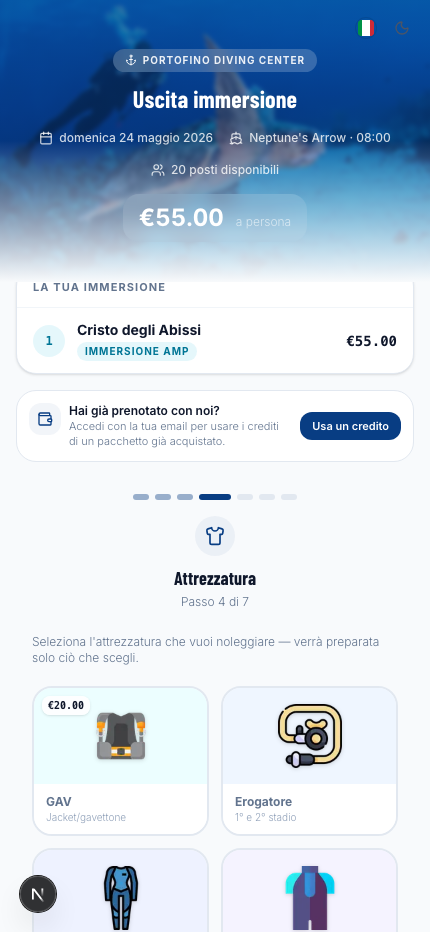
Step 4 — Rental equipment
The customer selects what they need (wetsuit, BCD, regulator, fins, mask). For size-dependent items the system asks for measurements and automatically picks the cheapest combination.
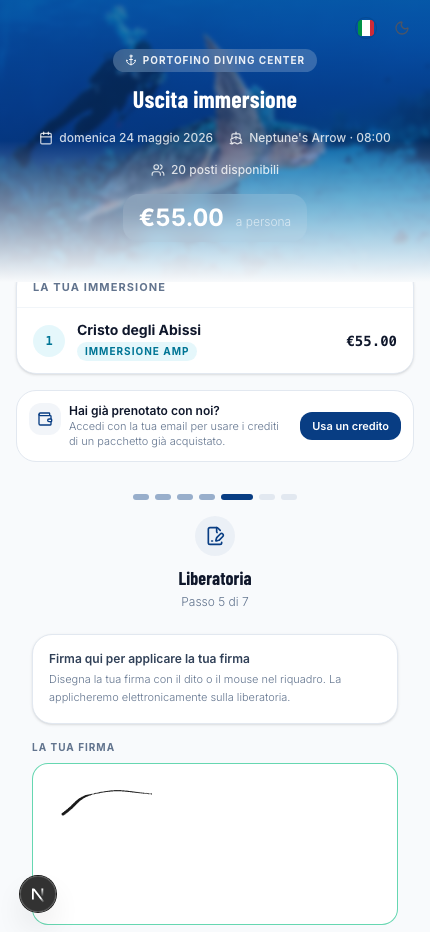
Step 5 — Waiver
The customer reads your center's liability waiver PDF, confirms they understood it, then signs digitally in the pad — with a finger on mobile or mouse on desktop. The signature is stamped onto the PDF and archived on their profile.
Step 6 — Review & payment
Full summary of details, certification, equipment, final price, and the signed waiver. If the center uses Stripe the customer pays here; on completion they receive a confirmation email.
:::tip Share a trip's direct link Every trip has a direct link you can share via WhatsApp, email, or social media. The customer opens the wizard pre-loaded for that date — no searching required. :::